Smoothing
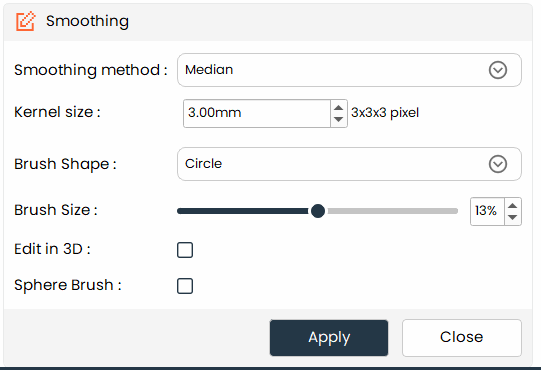
Smooth the surface of segments for better quality models.
- The
Smoothingtool allows users to refine the surface of segments by applying various smoothing methods, which helps in creating more accurate and aesthetically pleasing models.
Steps:
- Choose the
Smoothingtool from the tools panel. - Select the smoothing method from the dropdown menu.
- Specify the kernel size in millimeters.
- Drag on specified region(drag will not work on joint smoothing) or Apply to perform the smoothing operation.
Additional Information
Smoothing Method
- Choose from different smoothing methods based on the desired outcome:
- Median: Reduces noise while preserving edges.
- Opening (remove extrusions): Removes small extrusions and smoothens the segment surface.
- Closing (fill holes): Fills small holes and gaps in the segment.
- Gaussian: Applies a Gaussian blur to smooth the segment.
- Joint smoothing: Smoothens the segment while preserving anatomical boundaries.
Kernel Size
- Enter the desired kernel size in the text box provided. The actual size in pixels will be displayed below the input box.
Brush Shape
- Circle, Square, and Lasso are the main types of brush shapes you can choose from.
Brush Size
- This option is used to change the diameter (e.g., Circle) or area (e.g., Square) for a brush shape. It is not available for Lasso.
Edit in 3D
- If enabled, it will allow editing in the 3D view. For Lasso, it is enabled by default.
Sphere Brush
- This option is only available for the Circle brush shape. If enabled, a 3D spherical brush is used rather than a 2D circular brush.