3D Objects Table
Import, manage, visualize, and export 3D objects including STL models and segment-derived meshes.
Steps
-
Import Model
- Click Import Model and select one or more STL files. Models can also be generated from segments using the Convert Segment to Model workflow described in the Segments section.
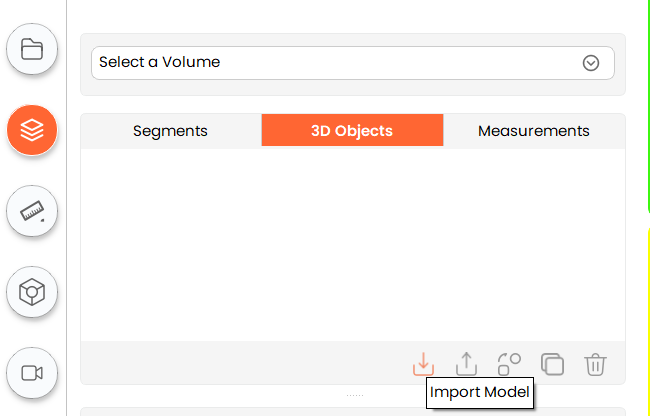
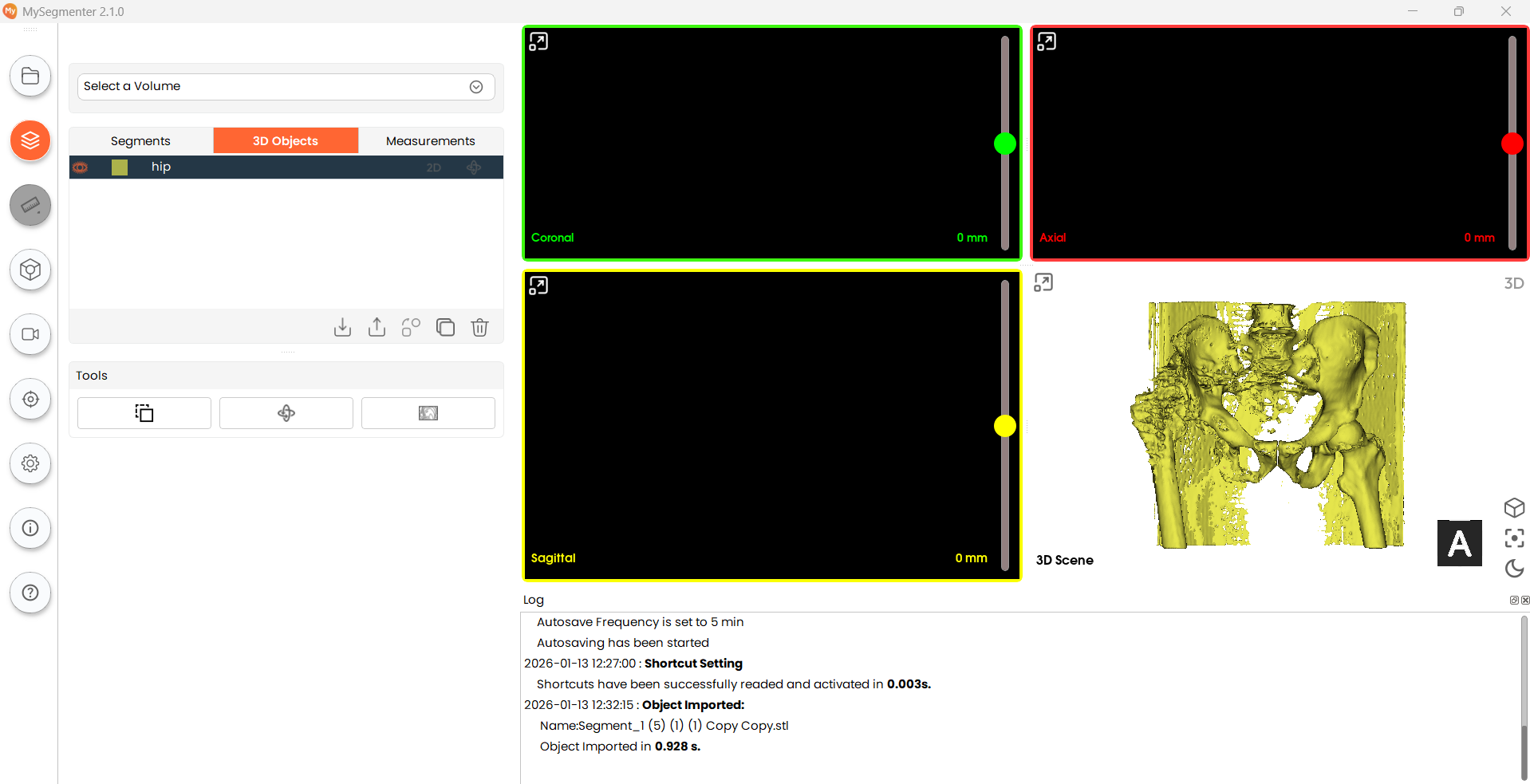
- Click Import Model and select one or more STL files. Models can also be generated from segments using the Convert Segment to Model workflow described in the Segments section.
-
Rename model, toggle visibility and 2D view, change color
- To rename a model, double-click its name in the model list.
- To change a model's display color, double-click the color swatch next to its name.
- Click the eye icon to show or hide the model in the 3D view.
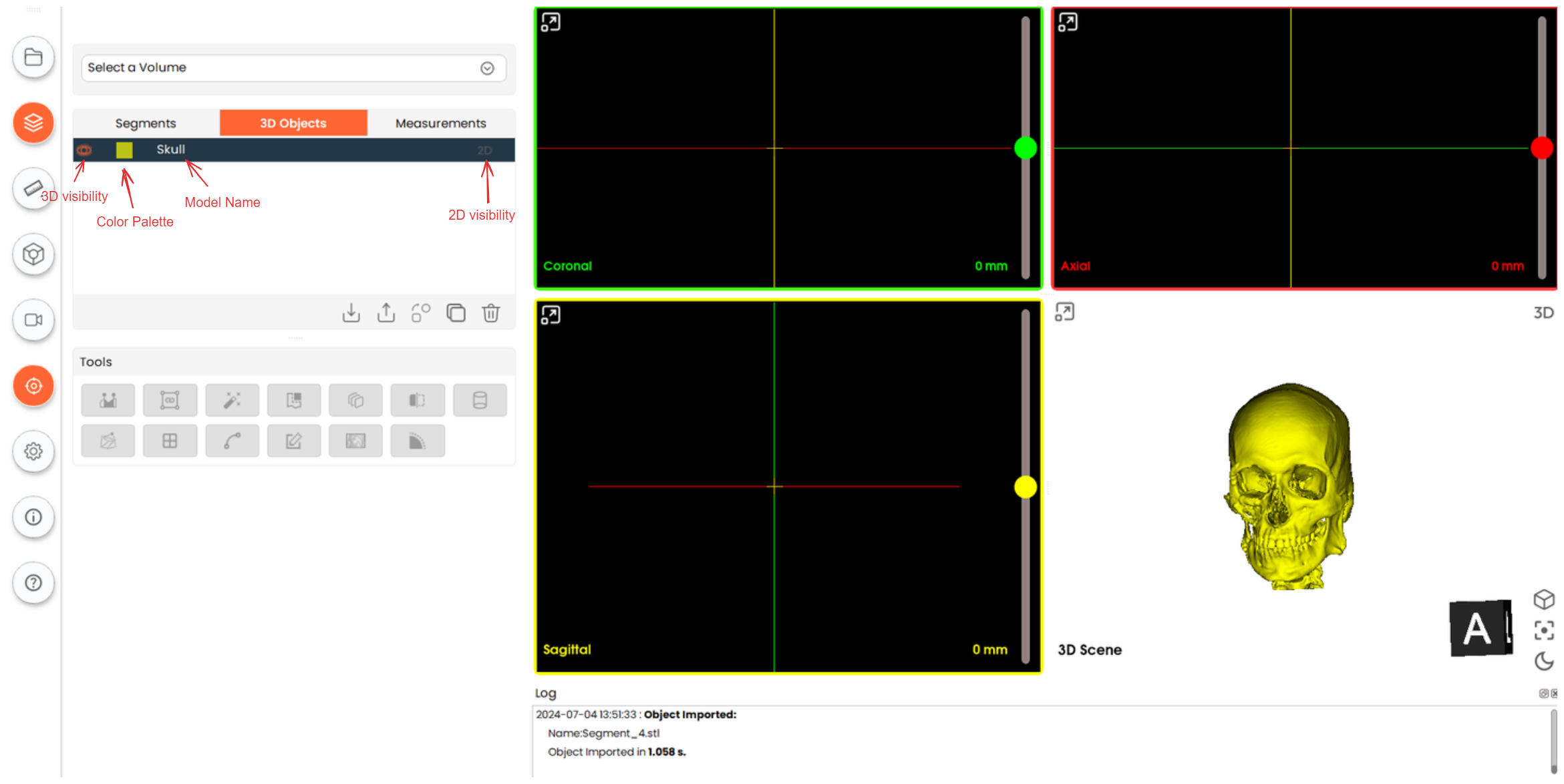
- Click the 2D option to show or hide the model overlay in the 2D slice views.
-
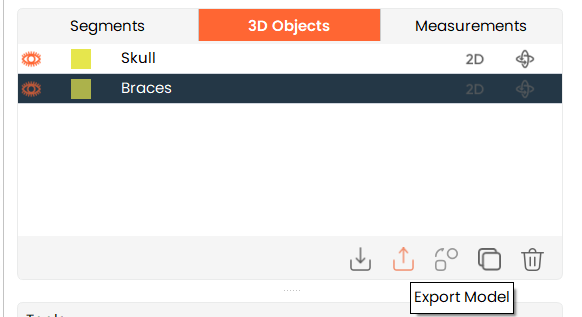
Export Model
-
To export multiple models at once, hold Shift and click each model to select them.
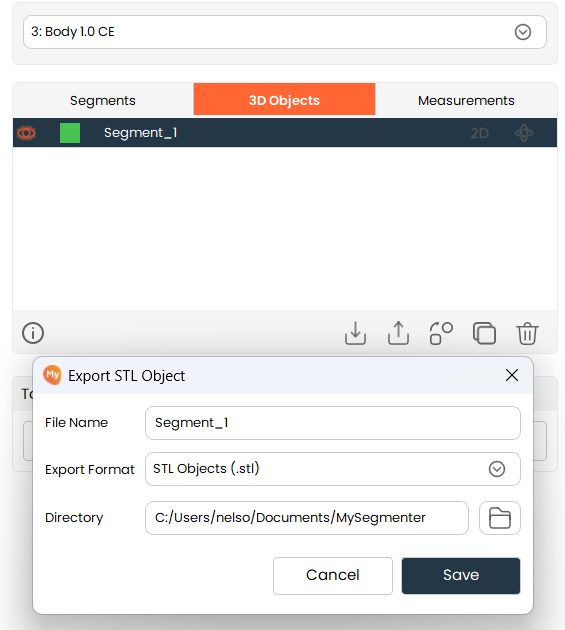
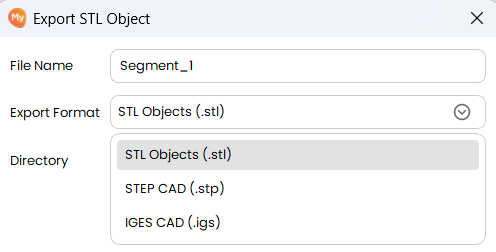
- Then, click on the "Export Model" button. A save dialog will appear where you can change the filename, export format (STL, STP or IGS), and destination location. Finally, click on "Save" to export the model.
-
Notes:
-
For IGS or STP conversion, if multiple disconnected mesh components are detected, the user shall be prompted to:
1.1.Export only the largest component
1.2.Export all components
1.3.Skip the object
-
The system shall notify the user before proceeding if mesh quality issues are detected, including but not limited to:
2.1.Small geometric features
2.2.Thin structures
2.3.Open boundaries
2.4.Unusual unit scales
4.Convert Model to Segment
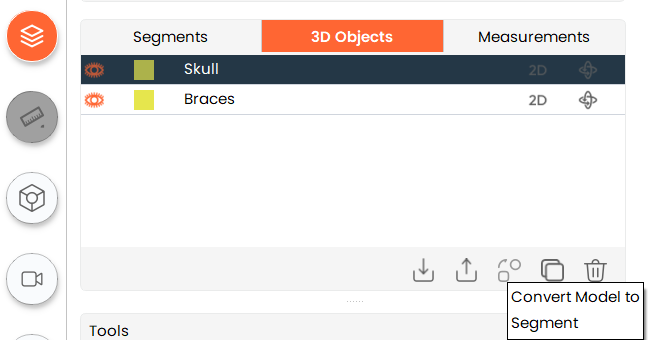
- To convert an object to a segment, a volume must be available. Click on the "Convert Model to Segment" button to convert. The converted segment will be available in the Segment table.
-
Copy Model
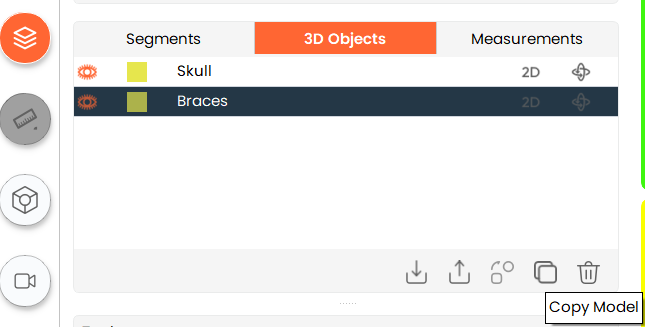
- To create a copy of an existing model, select the existing model and click on the "Copy Model" button.
-
Delete Model
- To delete any existing model, select the model you want to delete and click on the "Delete Model" button.
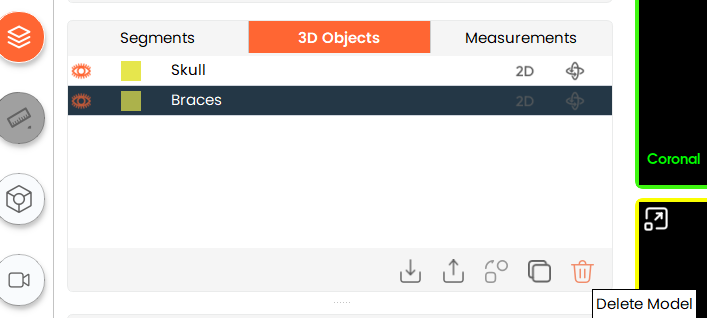
- To delete any existing model, select the model you want to delete and click on the "Delete Model" button.
Model Opacity
Adjust the transparency of individual 3D objects directly from the 3D Object table.
- When multiple 3D objects are loaded, such as imported STL models or models created from segments, users may need to adjust the transparency of individual objects to inspect overlapping models. The Opacity column in the 3D Object table allows users to adjust the transparency of individual models directly from the table, without leaving the Segmentation screen.

Steps:
- Click the droplet icon
Click the droplet icon in a model row. A small, rounded popup opens at the mouse position, with the slider and value box initialized to the model’s current opacity.
- Change the opacity
Adjust the opacity using any of the following methods:
- Dragging the slider.
- Entering a value in the value box.
- Using the up/down arrow buttons (1% per click).
- Review the result
The model’s transparency in the 3D view updates immediately as the opacity value changes. The droplet icon also updates to reflect the corresponding opacity level. No Apply button is required.
- Close the popup
Click outside the popup or press Esc to close it. The last applied opacity value is retained.
Additional Information
- Column order: Visibility (eye) | Color | Name | Opacity (droplet) | 2D Visibility | Interaction.
- Opacity popup: contains the label "Opacity:", a horizontal slider ranging from 0% to 100%, and a value box displaying the current opacity as a percentage (e.g., "77%") with up/down arrow buttons. The value box follows the same visual style as other value boxes in MySegmenter.
- Range: the opacity value ranges from 0% (fully transparent) to 100% (fully opaque), using whole-number values only.
- Droplet icon: uses the same icon set as the Segment Table and represents the model’s current opacity using six levels:
| Model Opacity | 0–9% | 10–29% | 30–49% | 50–69% | 70–89% | 90–100% |
|---|---|---|---|---|---|---|
| Droplet Representation | 0% (empty) | 20% | 40% | 60% | 80% | 100% (full) |