Crop and Reslice Volume
The MySegmenter software offers a Crop Volume tool that lets you extract a region of interest (ROI) from a volume and save it as a new, separate volume — without modifying the original. A new empty segmentation is created automatically with the cropped volume, so you can begin segmenting right away.
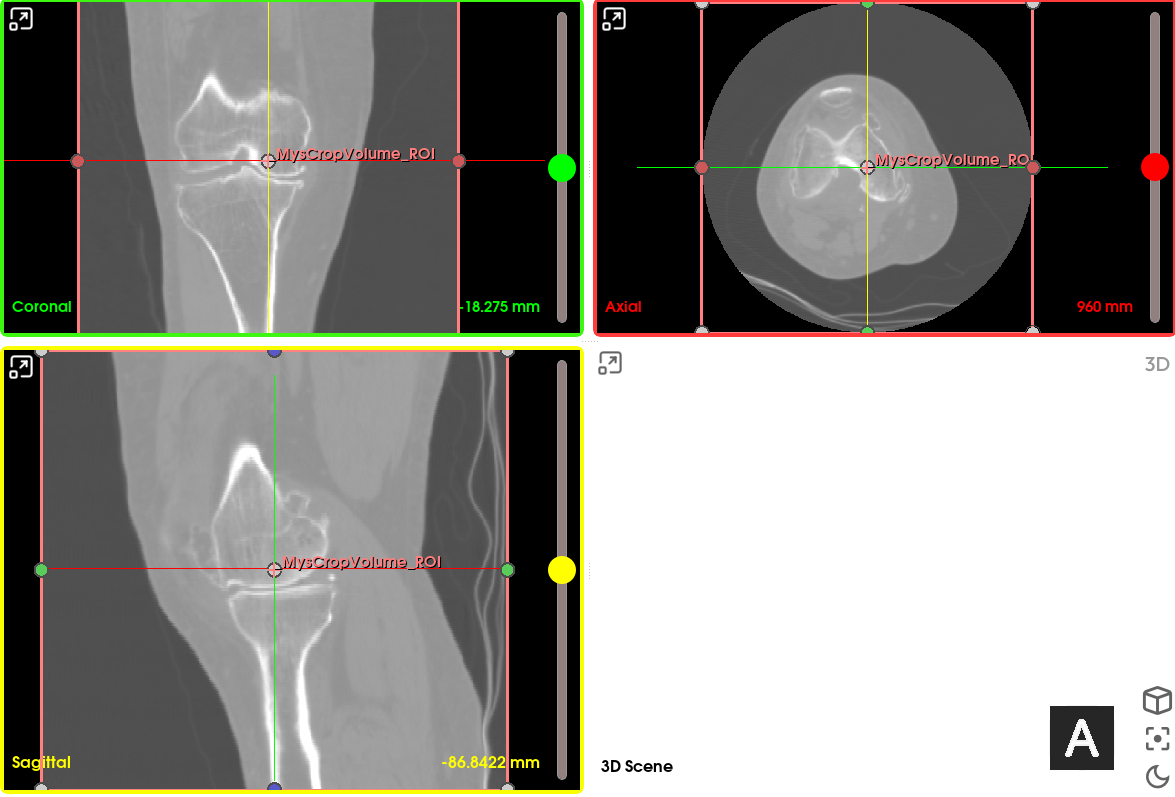
Steps:
- Select the source volume using the volume selector. The tool stays synced to the active volume.
- An interactive ROI box appears in the image views, automatically fit to the full volume. Drag its handles to move or resize it, or click Fit to Volume to reset it. Use Show/Hide ROI to toggle its visibility.
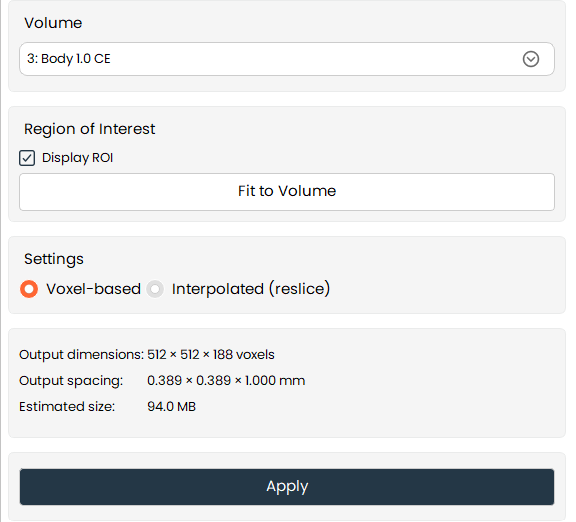
- Choose a crop mode: 3.1.Voxel-based (default): axis-aligned crop, no resampling.
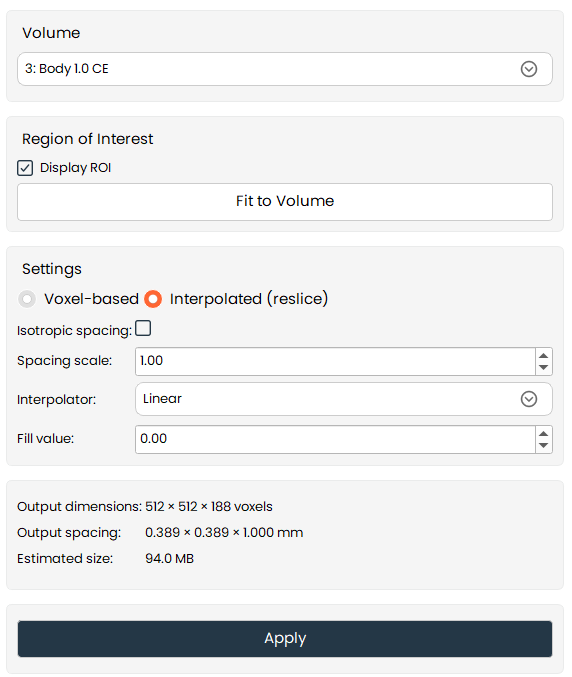
3.2.Interpolated (Reslice): allows arbitrarily oriented ROIs and resamples the volume. When selected, additional options appear:
3.2.1. Isotropic spacing
3.2.2. Resolution/spacing scale (0.1× – 10×)
3.2.3. Interpolation method
3.2.4. Fill value (–100000 to +100000)
-
A live preview shows the output dimensions, spacing, and estimated file size as you adjust the ROI or reslice settings.
-
Click Apply to run the crop.
Notes
-
If the chosen output spacing is coarser than the source volume's, a non-blocking warning notes a possible aliasing risk — this does not block cropping or change your settings.
-
If the estimated output size exceeds ~2 GB, a note is shown indicating that success depends on available system RAM/memory.