Edit Segment
The "Edit Segment" tool allows users to modify a segmented region using a paintbrush or eraser, providing a detailed and customized approach to segmentation editing.
Steps
-
Select a Segment
- Select the segment you want to edit and click the "Edit Segment" tool.
-
Paint
- The following are the various options available for painting purposes:
- Brush Shape: Three brush shapes are available: Circle (round area), Square(rectangular area), and Lasso (freehand region). To use Lasso, select it as the brush type and draw freely over the view while holding the left mouse button.
- Brush Size:Adjusts the diameter of Circle brushes and the side length of Square brushes. Not applicable when using the Lasso shape.
- Edit in 3D:When active, painting and erasing operations apply directly in the 3D view. This option is enabled by default for the Lasso brush.
- Sphere Brush: Available for the Circle brush only. When enabled, a 3D spherical brush is used, simultaneously affecting voxels across adjacent slices — useful for volumetric editing.
- Threshold Intensity: When enabled, painting is restricted to voxels within the specified intensity range. A slider will appear to define the minimum and maximum intensity bounds, preventing accidental painting into adjacent structures.
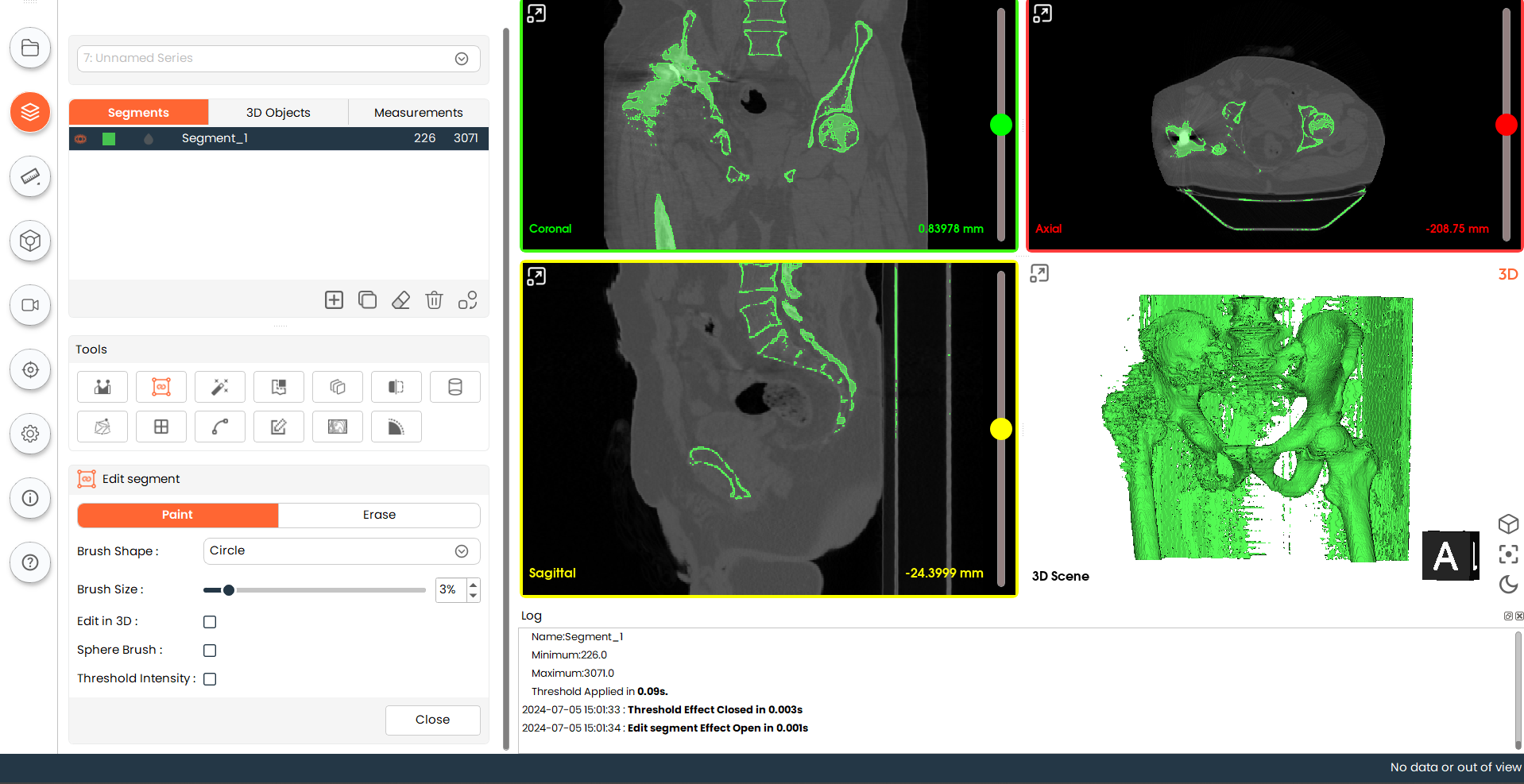
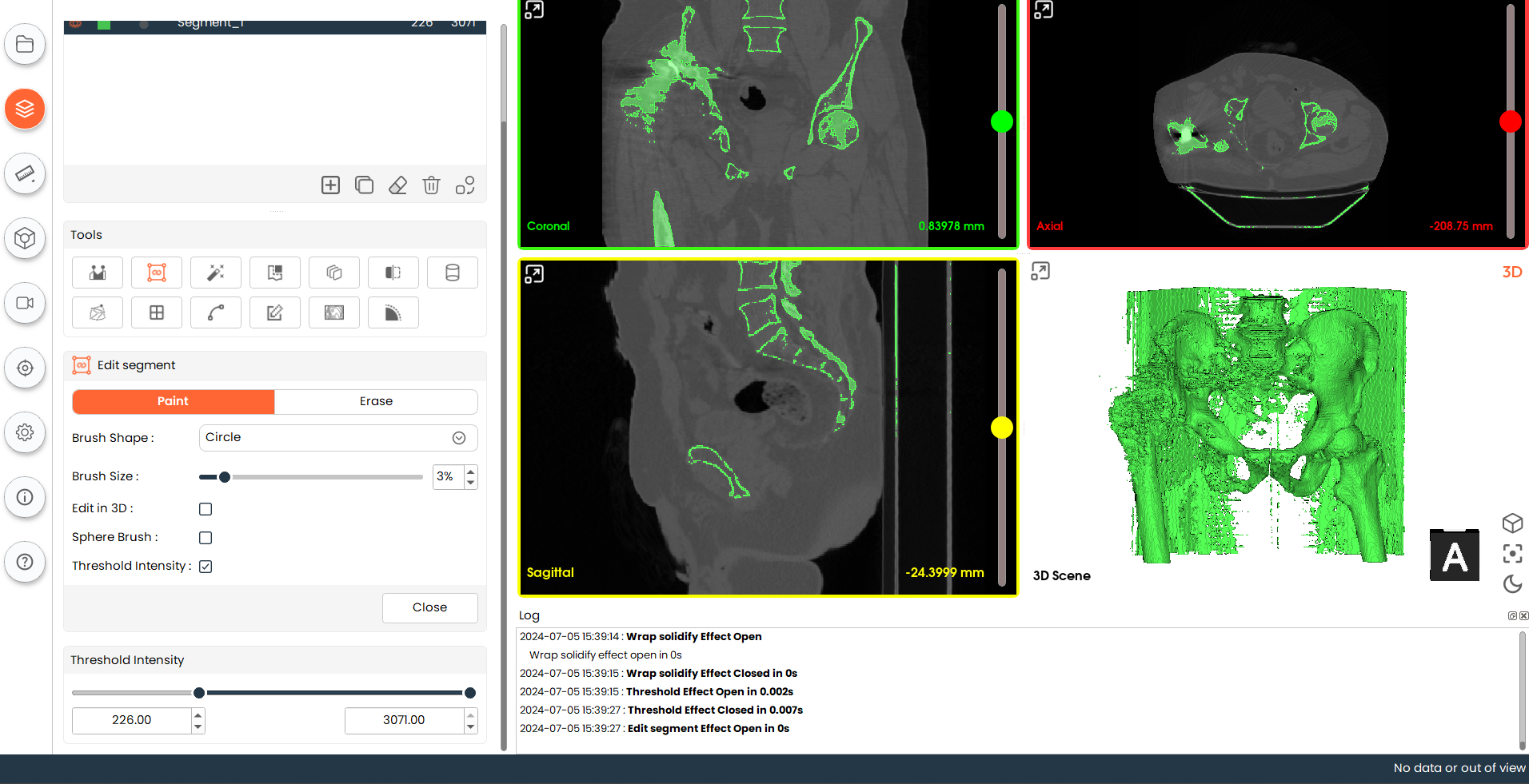
- The following are the various options available for painting purposes:
-
Erase
-
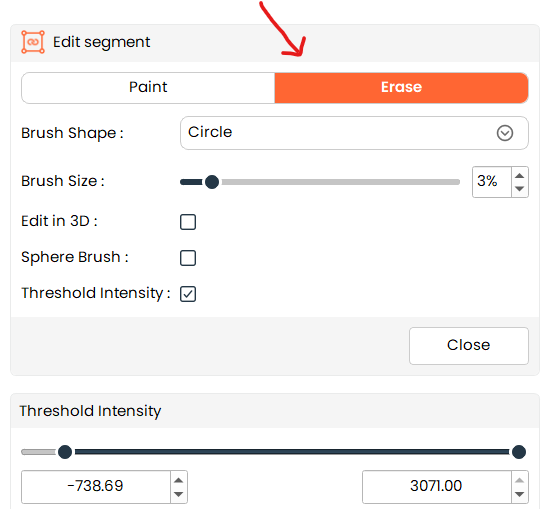
Switch the tab from "Paint" to "Erase". All the other options remain the same and will be used for erasing purposes.
-
Position the cursor in a 2D or 3D view, hold the left mouse button, and drag to erase the selected region from the segment.
-