Hollow
Create, manage, and organize segments using the toolbar controls described below.
- The
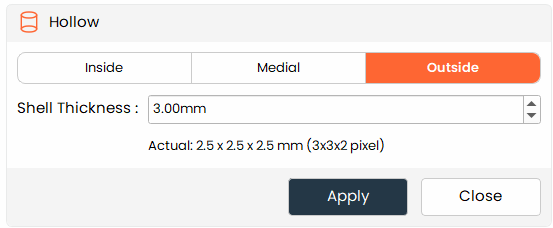
Hollowtool allows users to create a shell by hollowing out the selected segment, which is useful for creating models with internal cavities or for reducing the material used in 3D printing.
Steps:
- Choose the Hollow tool from the tools panel.
- Choose the segment you want to hollow from the segment table.
- Enter the desired wall thickness in millimeters
- Select the hollowing type: Inside, Medial, or Outside (see Additional Information below).
- Click Apply to execute the hollowing and update the segment.
Additional Information
Changing Shell Thickness
- Type the desired wall thickness (in mm) into the input box. The equivalent pixel thickness is displayed below for reference.
Hollowing Types
-
Inside: Removes material from within the segment, preserving the outer surface boundary.
-
Medial: Centers the hollow within the segment wall, removing equal amounts from both the inner and outer surfaces.
-
Outside: Removes material starting from the outer surface and expanding inward, effectively shrinking the external boundary.
Apply/Update Changes
- Click Apply to process the segment using the defined thickness and hollowing type.