Multiple Slice
Create, manage, and organize segments using the toolbar controls described below.
- The
Multiple Slicetool allows users to simultaneously select and edit multiple segments, streamlining the editing process for efficiency.
Steps:
-
Choose the
Multiple Slicetool. -
Choose the parent segment to which the edits will be applied.
-
Paint the region of interest in the 2D view.
-
Choose whether to Add or Remove voxels across the slice range.
-
Click Initialize/Update to generate a preview of the operation.
-
Click Show Preview to visualize the multi-slice result in the 3D view.
-
Adjust the preview opacity slider to control transparency.
-
Click Apply to commit the operation to the segment
Additional Information
Changing Parent Segment
- Use the Parent Segment dropdown to switch to a different target segment.
Apply/Update Changes
- Click Initialize/Update to refresh the preview after making changes.
Preview
- The 3D view displays a preview of the multi-slice operation result.
Opacity
- Use the opacity control to adjust the transparency of the preview overlay.
Operation
- Switch between Add (extends segment across slices) and Remove (deletes from slices) operations.
- Add : Adds segmentation data to all slices within the painted region.
- Remove : Removes segmentation data from all slices within the painted region.
- Brush Shape : Circle, Square, and Lasso are the main types of brush shapes you can choose from.
- Brush Size : Adjusts the diameter of Circle brushes and the side length of Square brushes. Not applicable when using the Lasso shape.
- Edit in 3D : When active, painting and erasing operations apply directly in the 3D view. This option is enabled by default for the Lasso brush.
- Sphere Brush : Available for the Circle brush only. When enabled, a 3D spherical brush is used, simultaneously affecting voxels across adjacent slices — useful for volumetric editing.
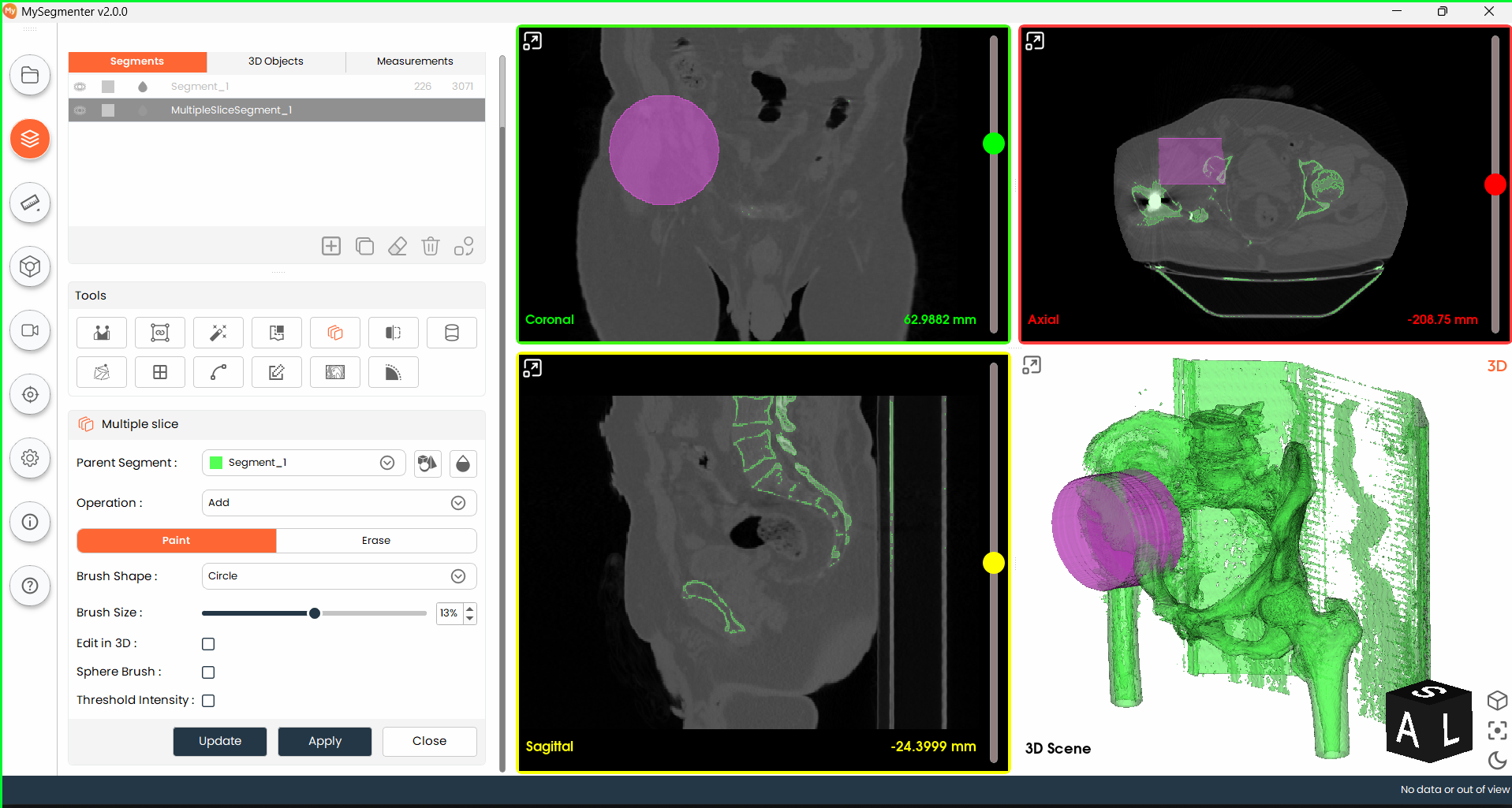
- Threshold Intensity : When enabled, painting is restricted to voxels within the specified intensity range. A slider will appear to define the minimum and maximum intensity bounds, preventing accidental painting into adjacent structures.